Docs › User › AI Agent & Chat
🤖 AI Agent & Chat
Describe a task in plain language and Oryn's AI agent reads, plans, edits, and verifies your code — pausing to ask before it writes anything.
Overview
The Chat panel is your primary interface to Oryn's AI agent. Type a task in natural language — "add email validation to the signup form", "scaffold a new React app with Docker", "find all usages of deprecated API X and replace them" — and the agent handles the rest. It reads your project files, reasons about what needs to change, applies edits through purpose-built tools, and delivers a completion summary with copy-paste verification commands. Every action that modifies a file pauses and shows you a diff so you can approve or reject it before anything is written to disk.
How it works
When you send a message the backend AgentOrchestrator runs an iterative loop: it builds a full conversation history (including your current workspace context), streams the AI model's response token-by-token to the chat panel over SignalR, and collects any tool calls the model wants to make. Read-only tools — file_read, codebase_search, list_files, file_search — execute immediately. Destructive tools — file_write, patch_apply, file_move, file_delete — are held in the ApprovalCoordinator, which suspends the loop for up to five minutes while the UI shows you the proposed diff in a modal; clicking Approve or Reject resumes or cancels that step, and the loop continues until the model signals it is done (no tool calls in the response) or the 200-iteration safety ceiling is reached. Before any prompt reaches the model, PromptGuardrails scans it for credential patterns (AWS keys, GitHub tokens, private key blocks, etc.) and either redacts them or blocks the request entirely.
What you can do
Streaming chatAgent replies stream word-by-word to the panel via SignalR, with a live blinking cursor so you can read output as it arrives.
@-mention file and folder pickerType @ in the compose box to fuzzy-search workspace files and folders; selecting one attaches its full content as inline context so the agent does not need a file_read round-trip.
/ slash commandsType / to pick a built-in or project-defined command (loaded from .oryn/commands/*.md) that expands into a ready-made prompt template.
@codebase semantic searchType @codebase followed by a query to retrieve the most relevant code snippets from the workspace index and attach them automatically as context before the message is sent.
Image and screenshot attachmentsPaste, drag-drop, or capture a screenshot directly in the compose box; images are sent to the model alongside your text prompt.
Approve / reject diff modalFor every file write, patch, move, or delete the agent proposes, a modal shows the before-and-after diff; you click Approve to proceed or Reject to skip that step and continue.
Auto-approve toggleA Manual / Auto-approve switch lets you bypass the approval modal for the current session when you trust the agent to work unattended.
One-click undo (checkpoints)Before each approved file mutation the original content is saved; the Undo button in the toolbar restores the last edited file to its pre-agent state.
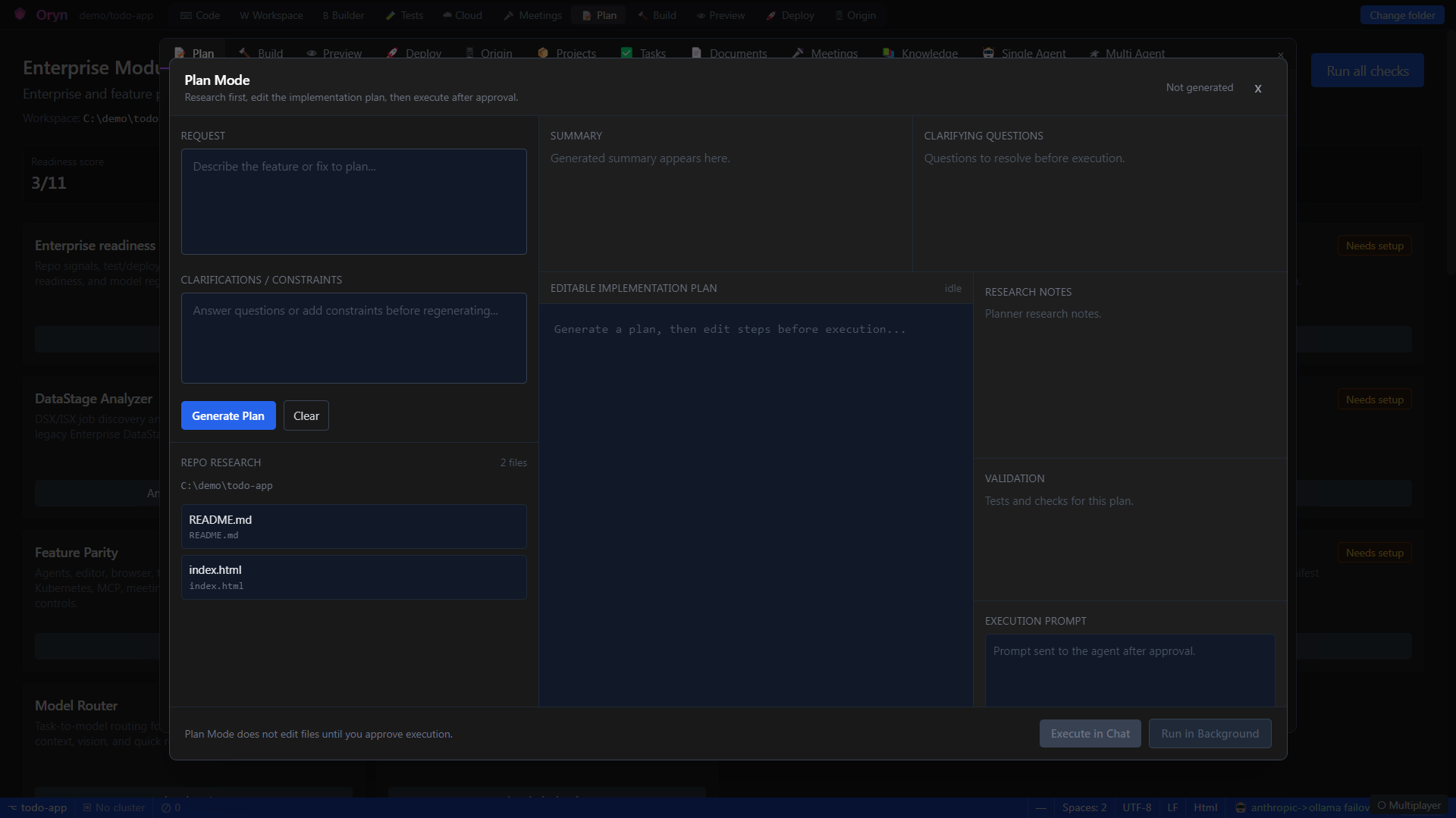
Plan ModeThe Plan button opens a separate planning view where you can review and adjust the agent's proposed approach before it begins executing.
Background (BG) runsThe background run button dispatches the prompt to a long-running server-side agent session that works without keeping the chat panel open.
Run on ServerThe cloud button launches the task on the remote Oryn server rather than the local backend, useful for resource-intensive or headless workloads.
Agent mode selector (Oryn / the agent / RCA)A dropdown switches between the default Oryn interactive mode, the agent background-run mode for heavy coding tasks, and RCA mode to resume and monitor existing sessions.
Conversation forkA fork action starts a fresh session that carries the current conversation as seed context, so you can explore an alternative approach without losing the original thread.
Prompt guardrailsEvery outgoing prompt is scanned for credentials and private keys; matching values are redacted before reaching the model, and the chat shows a notice when redactions occur.
Project rules (.orynrules / .oryn/rules/*.mdc)The system prompt automatically prepends project-scoped rules from .orynrules or file-pattern-matched .mdc rule files, letting teams codify style and policy without touching prompts.
Structured completion summaryOn finishing, the agent always produces a Task complete summary with a bullet list of changes, copy-paste verification commands, and optional next steps.
Tool call cardsEach tool invocation is rendered as a compact status card (pending / running / done / failed) grouped in the message stream so you can track exactly what the agent did.
Voice inputA microphone button accepts a voice transcript and appends it to the compose box, then sends automatically.
How to use it
- Open a workspace
Use File > Open Folder to open your project directory. The agent is workspace-scoped — it reads and writes files relative to this root, and its file search tools will not traverse outside it. - Type your task
Click the compose box at the bottom of the Chat panel and describe what you want done in plain language. You can write in English or any of the supported languages listed in the model's system prompt (Hindi, Spanish, French, Japanese, and many others). Press Enter or click Send. - Attach context if needed
Before or during typing you can attach more context: type @ to pick a file or folder from the workspace, type @codebase followed by a description to pull semantically relevant snippets, drag-drop an image, paste a screenshot, or click the paperclip to browse files. Attached context is included in the prompt so the agent skips redundant file reads. - Use a slash command for common tasks
Type / to browse built-in commands (such as code review or MR review templates) and any commands your team has defined in .oryn/commands/*.md. Press Enter or Tab to expand the selected command into the compose box. - Watch the agent think and act
The agent's reply streams in real time. As it works, tool call cards appear in the message stream showing which tools are running (file_read, codebase_search, patch_apply, etc.) and their status. The progress indicator in the panel header shows the current iteration and activity. - Approve or reject file changes
When the agent wants to write, patch, move, or delete a file, the loop pauses and an approval modal appears showing a side-by-side diff of the original and proposed content. Click Approve to let the change proceed or Reject to skip it. The agent records your decision and continues. If you do not respond within five minutes the step times out and is skipped. - Review the completion summary
When the task finishes, the agent sends a structured summary: a bullet list of every file it changed, a 'How to verify' section with copy-paste commands or URLs, and optional next steps. A token and iteration count is shown in the system message below. - Undo an edit if needed
If you want to roll back the last agent file change, click the Undo button (↶) in the panel toolbar. A confirmation dialog shows the file name and the tool that made the change; confirming restores the pre-edit content.
Example
You open a React workspace and type: "Add form validation to src/components/SignupForm.tsx — email must be a valid address and password must be at least 8 characters. Show inline error messages." The agent streams a brief plan, then calls codebase_search to find SignupForm.tsx, calls file_read to load it, and proposes a patch_apply edit. An approval modal opens showing the diff: new state variables for errors, a validateForm function, and two error spans in the JSX. You click Approve. The agent applies the patch, calls file_read to confirm the result, and finishes with: "Task complete — updated src/components/SignupForm.tsx. To verify: run npm run dev and open http://localhost:5173/signup; submit the form with an invalid email to see the inline error."
Admin notes
Prompt guardrails are enabled by default and block prompts that contain private key blocks (PEM format). To allow private keys through instead of blocking them, set the environment variable ORYN_PROMPT_GUARD_BLOCK_PRIVATE_KEYS=false on the backend process; redaction still occurs. AWS access keys, GitHub tokens, and other credential patterns are always redacted before the prompt reaches the model, regardless of this setting. The approval timeout is fixed at five minutes in ApprovalCoordinator; if your team needs a longer window for complex reviews this requires a backend configuration change. The agent loop safety ceiling is 200 iterations; normal multi-file tasks run well under 20. Project-level rules can be enforced by placing a .orynrules file or .mdc files under .oryn/rules/ in the repository — these are injected into the system prompt automatically and take precedence over the default agent behaviour, making them the recommended mechanism for team coding standards.
Related