🧪 Tests
Generate test code with AI and run it against your app — all without leaving Oryn.
Overview
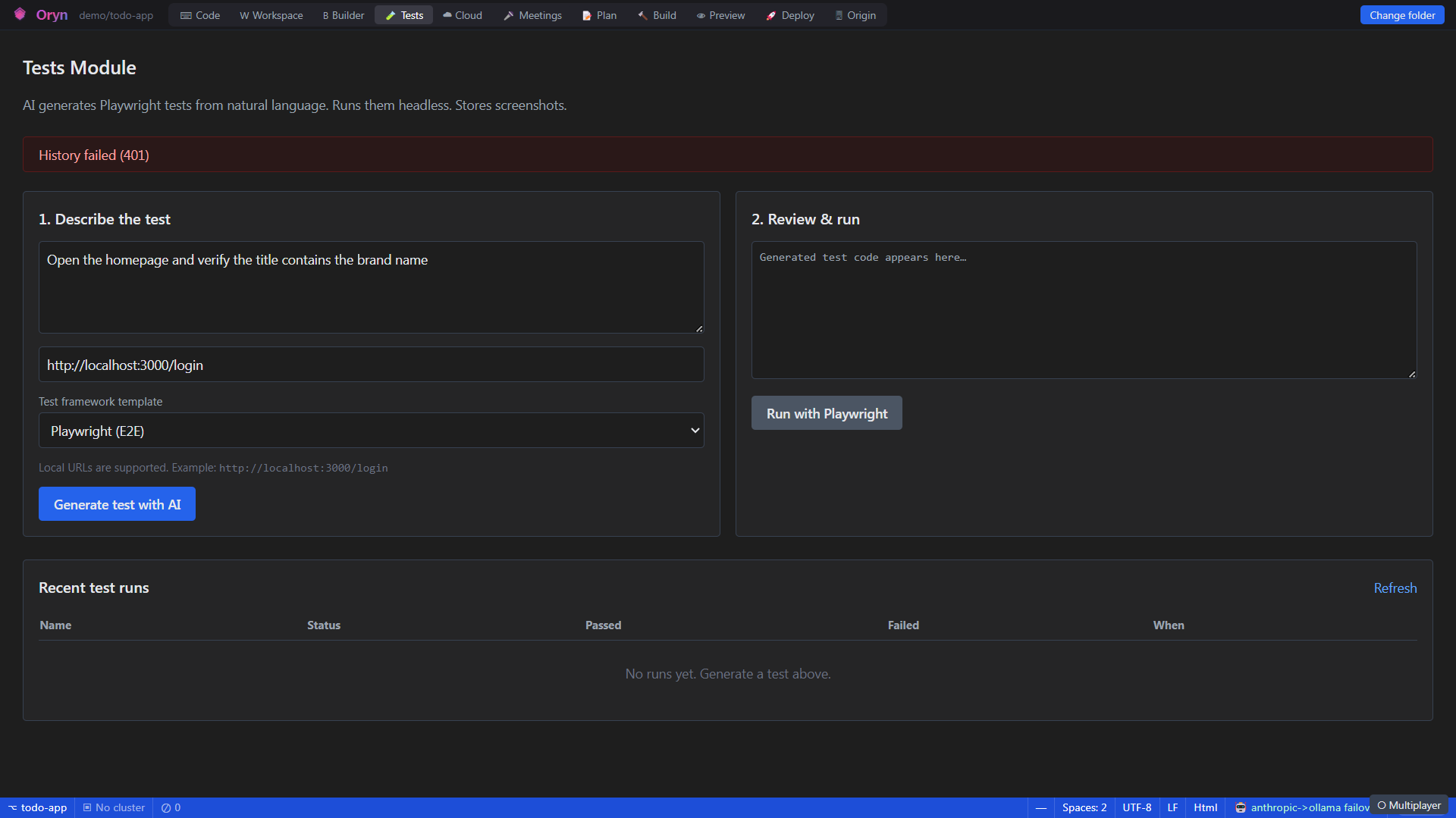
The Tests area gives you two complementary ways to work with tests. The AI-powered Tests Module lets you describe what you want to verify in plain English, picks a test framework, and generates ready-to-run test code for you. The Test Runner Panel discovers and runs existing tests that already live in your workspace, surfacing pass/fail status in a tree view with per-test timing and error detail. Together they cover the full loop from writing your first test to monitoring your whole suite.
How it works
When you generate a test, Oryn's backend sends your description, target URL, and chosen framework to an AI model, which returns clean test code with no markdown wrapping. For Playwright tests the backend then queues a TestRun record in the database, spawns `npx playwright test` in a sandboxed temp directory with a minimal `playwright.config.ts`, parses the JSON reporter output for pass/fail counts, uploads any screenshots captured during the run to blob storage, and updates the run record so the history table reflects the final state. The Test Runner Panel works differently: it calls native Electron APIs (`window.oryn.tests.detectFramework`, `list`, `run`) to auto-detect which framework your workspace uses, enumerate test files, and stream real-time pass/fail/skip events back to the UI as the framework process runs — with no backend round-trip needed.
What you can do
AI test generationDescribe a scenario in plain English and Oryn generates syntactically correct test code for your chosen framework.
Multi-framework code templatesSupports Playwright (E2E), Jest, Vitest, Pytest, xUnit, JUnit, Go test, RSpec, and PHPUnit — pick from a dropdown before generating.
One-click Playwright executionFor Playwright tests, click Run with Playwright and Oryn queues, runs, and records the result automatically, including screenshots.
Screenshot capturePlaywright runs capture page screenshots at test end; up to ten screenshots per run are stored and retrievable via the API.
Run history tableThe last 50 test runs for a project are listed with name, status badge (Queued / Running / Passed / Failed), pass count, fail count, and timestamp.
Workspace Test Runner PanelAuto-detects your project's test framework and shows a collapsible tree of all test files with live status icons as tests execute.
Run all or run oneIn the Test Runner Panel, run every discovered test with Run All or hover a row and click the per-test Run button.
Cancel in-flight runsA Cancel button appears in the Test Runner Panel while a test process is active, letting you stop a long-running suite immediately.
Inline error detailFailed tests in the panel show an expandable error message inline so you can read the failure without opening a separate view.
Jump to sourceClicking a leaf test row in the panel opens the corresponding file at the right line in the code editor.
How to use it
- Open the Tests Module
From the main navigation select Tests. The panel opens with a description field pre-filled with an example prompt. - Describe what to test
Replace the placeholder text with a plain-language description of the scenario — for example, 'Open the login page, submit valid credentials, and verify the dashboard loads'. - Set the target URL
Enter the URL your test should navigate to. Local addresses like http://localhost:3000/login are fully supported. - Choose a framework
Use the Test framework template dropdown to pick Playwright (E2E), Jest, Vitest, Pytest, xUnit, JUnit, Go test, RSpec, or PHPUnit. - Generate the test
Click Generate test with AI. Oryn calls the AI model and displays the generated code in the Review pane on the right. You can edit it directly in that text area before running. - Run the test (Playwright only)
If you chose Playwright, click Run with Playwright. Oryn queues the run, executes it headlessly via npx playwright test, and updates the Recent test runs table. For other frameworks, copy the generated code into your project's test suite and run it from the Test Runner Panel. - Check the results
The Recent test runs table at the bottom of the page shows the status badge, passed and failed counts, and the time the run completed. Refresh at any time with the Refresh button. - Use the Test Runner Panel for existing suites
Open the Test Runner Panel from the sidebar. Oryn auto-detects your workspace framework (or pick one manually from the Framework dropdown), lists all test files in a tree, and lets you run the full suite or a single test by hovering the row.
Example
Suppose you are building a login flow and want a quick smoke test. In the Tests Module you type: "Navigate to the login page, fill in username 'demo@example.com' and password 'correcthorse', click the Sign in button, and assert the URL changes to /dashboard." You set the target URL to http://localhost:3000/login, leave the framework as Playwright (E2E), and click Generate test with AI. Within a few seconds the Review pane fills with a TypeScript Playwright test that performs exactly those steps and takes a screenshot at the end. You click Run with Playwright. The status changes to Running in the Recent test runs table, then flips to Passed with 1 passed / 0 failed once the headless browser completes the flow.
Admin notes
Playwright-based test execution requires `npx playwright` to be available on the server host and Chromium to be installed (`npx playwright install chromium`). If Playwright is missing, every run will immediately fail with an explicit message in the output log telling you to install it. The AI test generator requires a valid API key configured in the backend; if the key is absent or set to a placeholder value the service falls back to a static template that validates the target URL format rather than generating a real scenario-specific test. Test screenshots are stored in blob storage under the `test-screenshots` container using the path `test-{runId}/screenshot-{index}.png` and are scoped to the organisation via tenant-mismatch checks on every endpoint.
Related