Docs › User › Image Gen & Meetings
🎨 Image Gen & Meetings
Generate images from text prompts and turn meeting audio into searchable notes and action items — all without leaving Oryn.
Overview
The Image Generation panel lets you create images from a plain-text prompt using configurable cloud image providers, with full control over style, aspect ratio, quality, and how many variants to generate at once. The Meetings feature captures audio from any live call (Teams, Zoom, Google Meet, or other), stores it as tamper-evident evidence, and then uses an AI backend to extract structured action items and decisions from the transcript. Both capabilities are built directly into the Oryn desktop application so you never need to switch tools. Your generation history and meeting records are saved locally and are immediately accessible the next time you open the panel.
How it works
When you submit a prompt in the Image Generation panel, the desktop sends a POST request to the Oryn agent API at `/api/v1/images/generate`. The backend looks up your chosen provider in the model registry, routes the request to the appropriate endpoint (Azure Foundry for GPT Image 2, or the standard OpenAI endpoint for DALL-E 3), and requests up to four base64-encoded PNGs in a single call. The response is decoded directly into data-URLs so images render in the panel without a second network round-trip. For meetings, the desktop uses the browser `getDisplayMedia` / `getUserMedia` APIs (with an Electron native desktop-sources fallback) to capture a combined stream of system audio and microphone. The audio is encoded as WAV and saved to disk via the native Electron bridge (or kept as a session blob if the bridge is unavailable). When you click "AI Extract", the transcript is streamed line-by-line to the Meetings AI backend (`/api/v1/meetings`), which first applies keyword heuristics and then calls the configured LLM to return strictly-structured JSON containing owners, commitments, and decisions.
What you can do
Multi-provider image generationRoute a single prompt to GPT Image 2 (Azure Foundry), DALL-E 3 (OpenAI), Stability AI, Replicate, or a local Stable Diffusion instance via a provider dropdown.
Style presetsAppend a visual style modifier — Photo, Illustration, Pixel Art, 3D Render, Watercolor, Sketch, or Anime — to the prompt automatically before sending.
Aspect ratio and size controlChoose 1:1, 16:9, 9:16, or 4:3; the panel maps these to the exact pixel dimensions accepted by the provider (e.g. 1792x1024 for 16:9).
Quality toggleSwitch between Standard and HD quality tiers before generating.
Batch generation (1, 2, or 4 images)Request one, two, or four variants from a single prompt in one API call; all results are displayed side-by-side.
Prompt historyThe last 50 prompts are stored in browser localStorage; click any history entry to restore the full prompt and all its settings instantly.
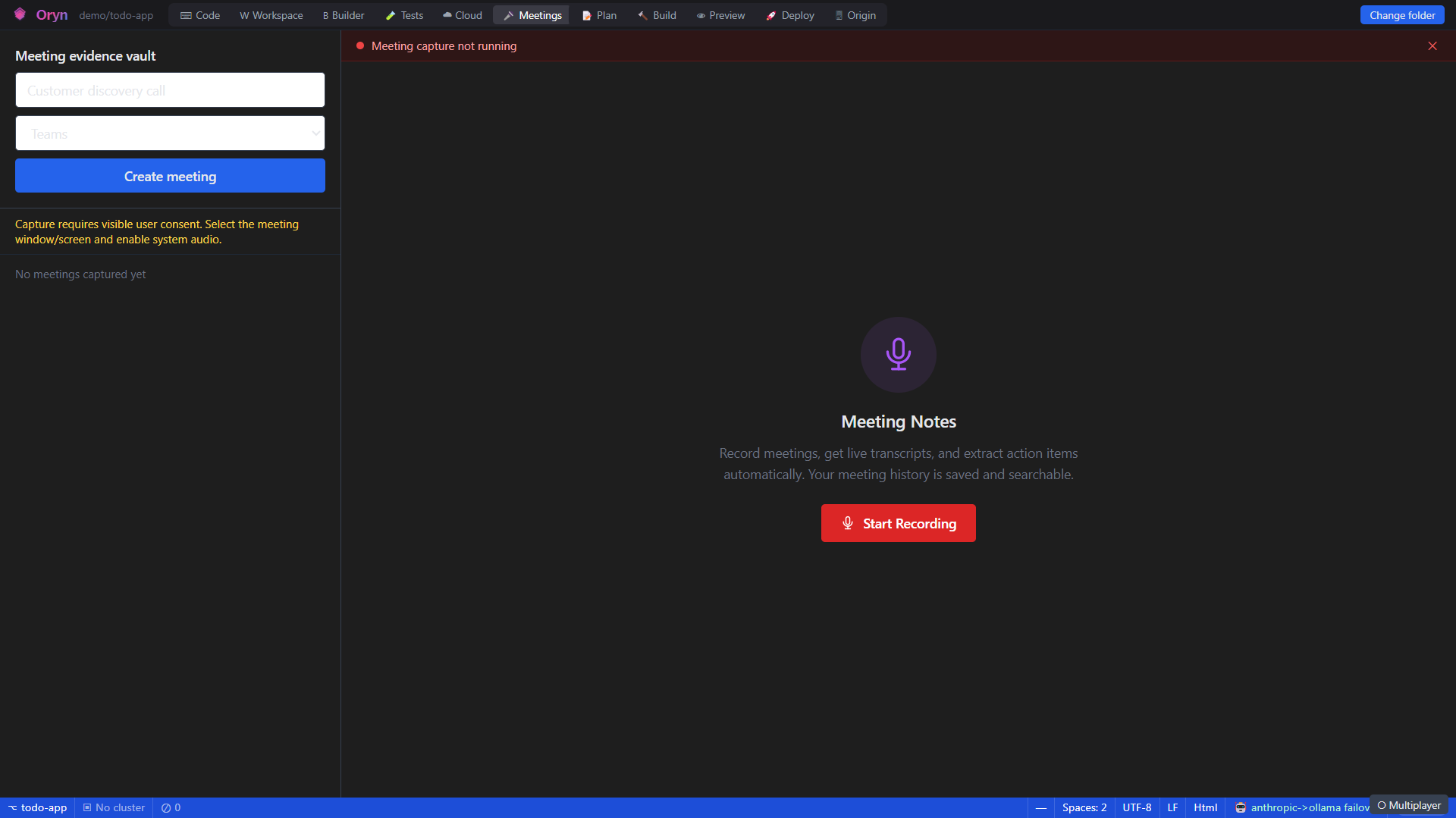
Meeting evidence vaultRecord system audio and microphone during a live call; the captured WAV file (size, duration, file path) is stored as verifiable proof of the meeting.
Live transcript and notes editorType or paste a transcript while a meeting is recording; save it to the meeting record at any time.
AI action-item and decision extractionSend the saved transcript to the Meetings AI backend, which uses your configured LLM to return a structured list of owners, commitments, and decisions in JSON.
Keyword fallback extractionIf the LLM call fails or is unavailable, the backend automatically falls back to heuristic keyword matching so you always get some output.
Live Q&A on running transcriptAsk the AI a question mid-meeting via the /api/v1/meetings/{id}/ask endpoint; it answers using the last ten transcript turns as context.
Decision searchSearch across all stored decisions and action items from past meetings with a keyword query against the Meetings AI backend.
Meeting scheduler (workspace)Schedule named meetings with a date, time, and duration via the Meetings Panel; records are persisted in the workspace database and scoped to your organisation.
Transcript and summary persistenceAttach a full transcript or an AI-generated summary to any scheduled meeting record via the workspace API, making them available to the whole team.
How to use it
- Open the Image Generation panel
Click the image generation icon in the Oryn sidebar (or use the keyboard shortcut). The panel opens as a modal overlay. Your previous prompt history appears in the right-hand column. - Choose a provider
Select your image provider from the Provider dropdown. GPT Image 2 (Azure Foundry) is listed first. If you have only an OpenAI key configured, choose DALL-E 3 instead. The provider you pick must have an API key set in Settings → API Keys. - Write your prompt
Type a description of the image you want in the Prompt text area. Be specific — include subject, setting, lighting, and mood for best results. - Set style, aspect, quality, and count
Click one of the seven style chips (Photo, Illustration, etc.), then pick your aspect ratio (1:1 for a profile photo, 16:9 for a banner), quality (Standard or HD), and how many variants you want (1, 2, or 4). - Generate and review
Click Generate. The tiles animate while the request is in flight (up to 60 seconds). When results arrive, images are shown at the correct aspect ratio. If the provider is not configured, a clear error tile explains what to fix. - Create a meeting record
Switch to the Meetings tab. Enter a title (e.g. 'Q3 customer discovery') and select the platform (Teams, Zoom, Google Meet, or Other), then click Create Meeting. - Start audio capture
Click Start Audio Capture. Your browser or Electron runtime will ask you to pick a screen or window to share — select the meeting window and make sure 'Share system audio' is enabled. Oryn also captures your microphone in the same stream if permission is granted. - Take notes during the call
While recording, type or paste a live transcript in the Transcript / live notes editor. Click Save notes at any point to persist what you have so far. - Stop capture and review evidence
When the call ends, click Stop Capture. Oryn saves the WAV recording and shows the file size, duration, and path in the Evidence panel. If the Electron native transcription bridge is available, a transcript is generated automatically. - Extract action items and decisions with AI
Click AI Extract action items + decisions. The transcript is sent line-by-line to the Meetings AI backend. Within seconds the AI Summary panel shows a formatted list of decisions and a checkbox-style action-item list with named owners.
Example
You are preparing a sprint kick-off recap. During the meeting you created a record titled "Sprint 12 kick-off — July", selected Teams, and recorded the session. Afterwards you paste this transcript into the notes editor:
Asha: Decision: we agreed to start the customer pilot next Monday on Azure.
Rahul: I will send the security checklist by Friday.
Me: Action: prepare the cloud cost estimate and Playwright smoke report for the client.
Asha: We agreed the success metric is checkout latency below two seconds.
You click Save notes, then AI Extract action items + decisions. The backend streams each line to the AI, which returns: two decisions ("start customer pilot on Azure next Monday", "checkout latency metric set at under two seconds") and two action items ("Rahul — send security checklist by Friday", "Me — prepare cloud cost estimate and Playwright smoke report"). The panel displays these as a structured markdown summary with checkboxes, ready to paste into your project tracker.
Admin notes
Image generation requires either AZURE_FOUNDRY_API_KEY (preferred for GPT Image 2) or OPENAI_API_KEY to be set in the environment or in the LLM configuration section (LLM:AzureFoundryApiKey / LLM:OpenAiApiKey). If neither key is present the endpoint returns an empty image array with a descriptive error rather than a 500. Stability AI, Replicate, and local-SD provider options are listed in the UI but route through the same backend endpoint; those providers must be registered in the ModelRegistry with the correct deployment name and base URL before they will work. The Meetings scheduler (MeetingsPanel / Workspace API) is a tier-gated feature: the workspace API returns HTTP 402 if the organisation's billing tier does not include the meetings module (checked via TierEntitlements.For(org.Tier).MeetingsModule). The Meetings AI backend (MeetingsAiController) stores meeting state in an in-process ConcurrentDictionary; this state is lost on agent restart, so it is intended for live-session extraction only — persist summaries to the workspace database immediately after stopping a meeting. Meeting audio capture requires the user to explicitly share a screen or window with system audio enabled; Oryn displays a consent banner reminding users of this requirement before capture starts.
Related