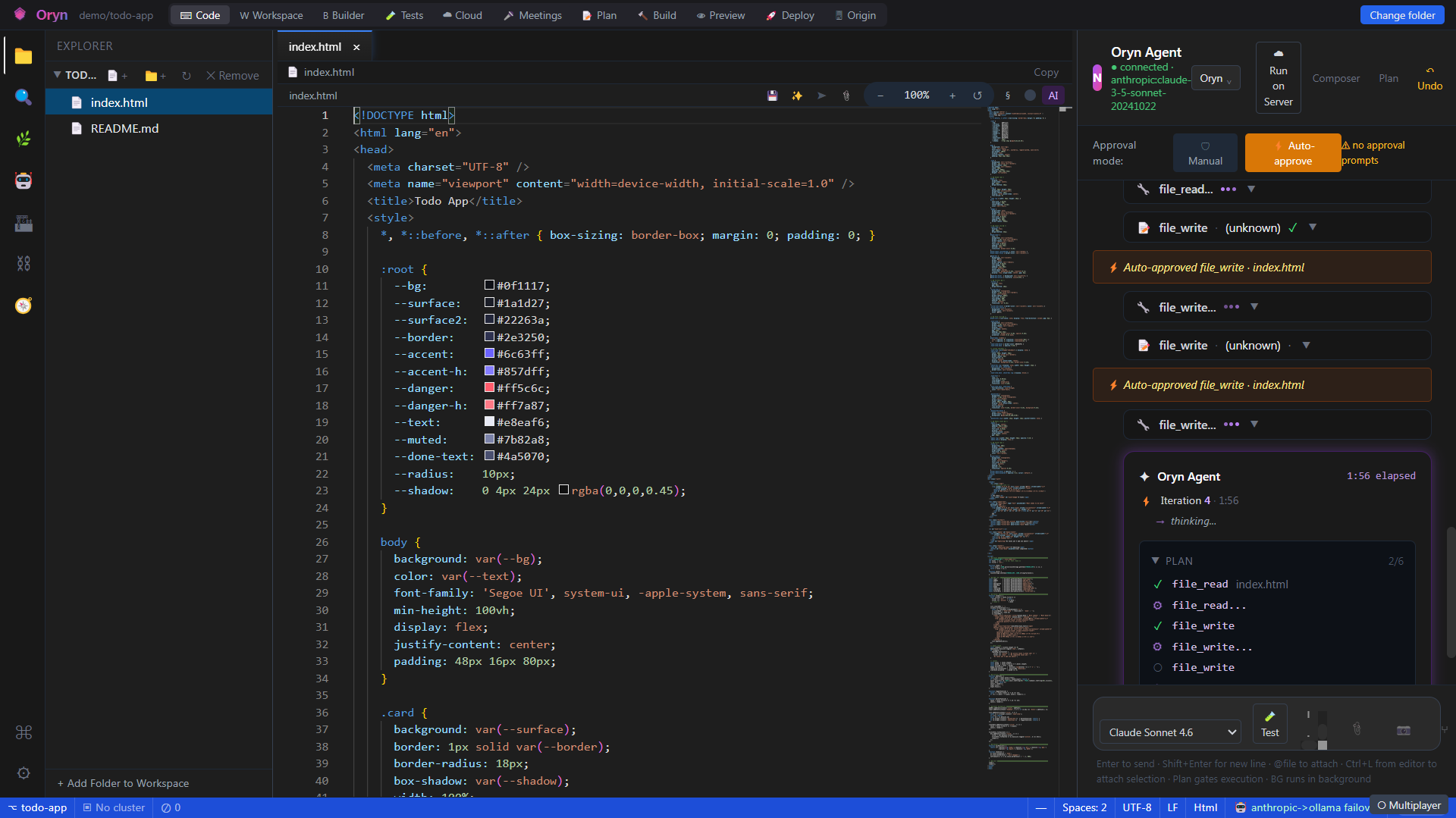
A full Monaco-powered code editor with AI inline editing, LSP intelligence, and deep chat integration built right in.
The Oryn code editor is a Monaco Editor (the same engine used in VS Code) embedded directly in the desktop app. It opens and manages multiple files at once using a tabbed interface, detects the programming language automatically, and applies syntax highlighting for over 50 languages out of the box. The editor is not just a viewer — it connects directly to the AI chat and inline-edit system so you can ask Oryn to rewrite selected code without leaving the file, or send any code snippet to the chat for a deeper conversation.
Each file you open is backed by a Monaco text model loaded from disk via Oryn's native filesystem bridge. The editor maintains a per-file view state (cursor position, scroll, folded regions) so switching between tabs is instant and lossless — the active file's model is swapped in and the previously saved view state is restored. For TypeScript, JavaScript, C#, Python, Go, and Rust, a Language Server Protocol (LSP) process is started in the background; it feeds real-time diagnostics (red/yellow squiggles) and powers hover tooltips and Ctrl+Click go-to-definition. For all other languages, a regex-based definition search scans the workspace. A separate fill-in-the-middle (FIM) completion provider sends the text around the cursor to the Oryn cloud API and renders the suggestion as ghost text (inline suggest), with a 200-entry local cache so repeated keystrokes do not round-trip the network.
Multi-file tab barDraggable, scrollable tabs show open files; dirty (unsaved) files show a pulsing amber dot; middle-click or the × button closes a tab.
Tab pinningRight-click any tab and choose Pin Tab to lock it to the left side of the bar so it cannot be accidentally closed.
Tab hover previewHovering over a tab for 600 ms shows a tooltip with the full file path, last-modified time, and line count.
Tab context menuRight-clicking a tab gives options to Pin/Unpin, Close, Close Others, and Close to the Right.
Breadcrumb navigationA path breadcrumb bar below the tabs shows the file's location relative to the workspace root; clicking a segment navigates to that folder.
Syntax highlighting for 50+ languagesFile extension is mapped to a Monaco language ID covering mainstream, web, systems, JVM, .NET, functional, scripting, data, infra, config, mobile, and shader languages.
LSP-powered diagnosticsFor TypeScript, JavaScript, C#, Python, Go, and Rust, a real Language Server runs in the background and publishes errors and warnings as inline squiggles.
Hover documentationHovering over a symbol in an LSP-supported language shows the type signature and doc comment from the language server.
Go-to-definitionCtrl+Click (or F12) on any symbol jumps to its definition; LSP handles supported languages, and a regex fallback handles the rest by searching the workspace.
AI ghost-text autocompleteAs you type, a fill-in-the-middle request is sent to the Oryn cloud API after a 150 ms debounce; the suggestion appears as grey ghost text and is accepted with Tab.
Ghost-text toggleThe AI button in the editor toolbar turns ghost-text completions on or off; the setting is persisted to localStorage.
Snippet completionsLanguage-specific snippets from the Snippets panel appear in the autocomplete dropdown alongside LSP suggestions.
Inline AI edit (Ctrl+K)Select one or more lines, press Ctrl+K, type an instruction (e.g. 'convert to async/await'), and the AI rewrites the selection in place; added lines are highlighted in green.
Accept / Reject / Retry inline editAfter an inline edit lands, a floating action bar lets you accept (Ctrl+Y), reject (Esc, which undoes the change), or retry with a new instruction.
Inline edit historyUp to 30 past inline-edit instructions are stored in localStorage; press the Up arrow in the instruction input to cycle through them.
AI Quick FixAny LSP or diagnostic marker shows a 'Fix with AI' code action; choosing it selects the erroneous range and pre-fills the inline-edit widget with the error message.
Send selection to chat (Ctrl+L)Highlights a code block and sends it — with the file path and line numbers — directly to the AI chat panel as context.
Send whole file to chatThe paperclip toolbar button sends the entire active file's content to chat as context without requiring a selection.
AI test generationRight-clicking in the editor and choosing 'Oryn: Generate test for symbol at cursor' calls the AI to write a test file for the word under the cursor, saves it next to the source file, and opens it in a new tab.
Voice-to-inline-edit (Ctrl+Shift+M)With code selected, pressing Ctrl+Shift+M records a 5-second audio clip, transcribes it with an offline Whisper model, and pre-fills the inline-edit widget with the spoken instruction.
Markdown split previewWhen a .md or .mdx file is active, a toolbar toggle switches between editor-only, side-by-side preview, and preview-only modes.
Image previewOpening a PNG, JPG, GIF, WebP, SVG, ICO, or BMP file renders an image preview instead of a text editor.
Outline viewThe § toolbar button opens a 280 px panel listing the current file's symbols (functions, classes, interfaces, headings, etc.) with click-to-navigate.
BookmarksRight-click any line to Add Bookmark; bookmarked lines show a gold star (★) in the gutter and are listed in the Bookmarks panel for one-click navigation.
Editor zoomZoom In / Zoom Out / Reset controls in the toolbar adjust the Monaco font size; the level persists across sessions.
Multiplayer co-editingWhen multiplayer is enabled (via the toolbar toggle), the active file is shared over a Yjs CRDT connection so multiple users can edit it simultaneously.
File explorer treeThe left-side file tree supports expand/collapse, inline rename, new file/folder creation, and delete, all via right-click context menu.
Workspace-wide find and replaceThe Find & Replace panel searches all files in the workspace root with optional case sensitivity and can batch-replace across every match.
Dirty-file guard on closeClosing a tab with unsaved changes shows a confirmation dialog rather than silently discarding edits.
Ctrl+S saveSaves the active file immediately with optimistic UI (the dirty indicator clears at once) and shows a toast on success or failure.
LSP status indicatorA small coloured dot in the toolbar shows the LSP state for the current file: green = running, yellow = starting, red = unavailable (regex fallback active).
You are looking at a Python function `process_order` that handles payment logic. Select the entire function body (lines 42–78), press Ctrl+K, and type: "add logging at entry and exit, and wrap the Stripe call in a try/except that raises OrderError on failure". Oryn sends the selected text plus surrounding context to the AI, which rewrites the block. The new lines appear highlighted in green. You review the diff visually, press Ctrl+Y to accept, then press Ctrl+S to save. You then press Ctrl+L to send the finished function to the chat and ask "write a pytest for this".
The AI ghost-text (FIM) completion and inline-edit features require a valid Oryn license and make requests to the Oryn cloud API endpoint configured in CLOUD_URL. Requests are made via the licensedFetch utility, which enforces license validation before each call — unlicensed installs will see completions silently disabled. The voice-to-code feature (Ctrl+Shift+M) requires a locally installed Whisper model and the Oryn Electron IPC bridge (window.oryn.voice.transcribeRecording); it will show an error toast if the offline STT component is not installed. Multiplayer co-editing uses a Yjs CRDT over a configured collaboration server; admins must ensure that server is reachable from all client machines and that the oryn.multiplayer.enabled localStorage flag (or the multiplayerEnabled prop) is set appropriately for the deployment. The LSP processes (typescript-language-server, OmniSharp, pylsp, gopls, rust-analyzer) are launched as child processes by the Electron main process via window.oryn.lsp.start; ensure these language server binaries are on the system PATH or bundled with the app.