Docs › User › Build, Preview & Deploy
🔨 Build, Preview & Deploy
Run your project through the GoldenPath build orchestrator, preview it live in the panel, and ship it to Vercel, Netlify, Cloudflare Pages, or Hostinger with a single click.
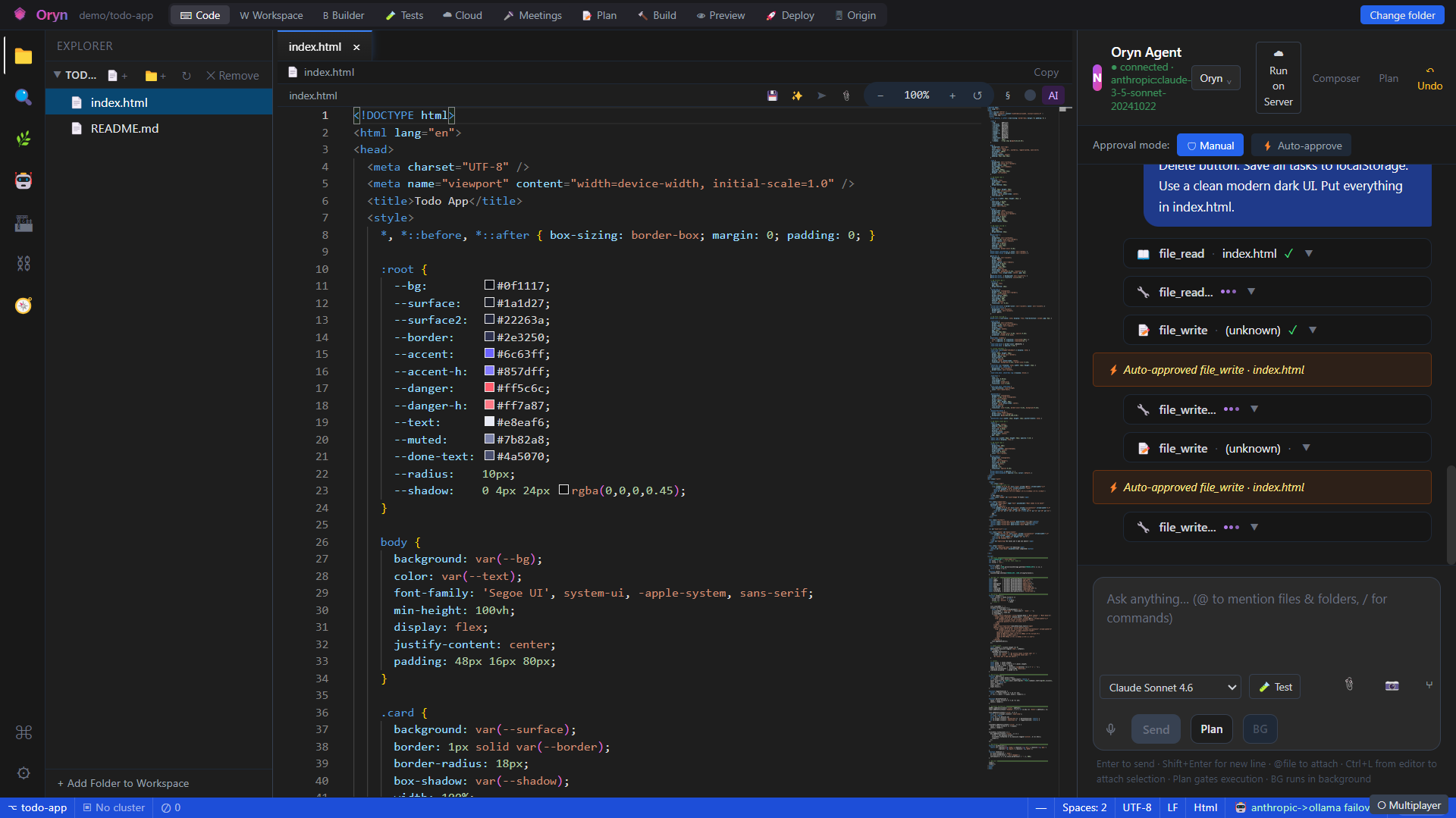
Overview
The Build, Preview & Deploy area gives you a complete inner loop — from validating your code to seeing it running in a browser frame to publishing it to a hosting provider — without leaving Oryn. The Build panel runs your project through Oryn's 11-phase GoldenPath orchestrator (or a safe dry-run that shows you the planned phases without executing them). The Live Preview panel lets you view the running app as a URL, inspect a static HTML or SVG file from the editor, or spin up a full in-browser WebContainer sandbox. When you are ready to go live, the Deploy panel connects to Vercel, Netlify, Cloudflare Pages, or Hostinger and streams real-time deployment logs straight into the UI.
How it works
The Build panel calls `POST /api/v1/build` on the Agent API. With dry-run enabled (the default), the backend returns a planned phase trace immediately — listing all 11 GoldenPath phases — without shelling out to Docker, Terraform, or k6. When dry-run is turned off, the `IGoldenPathOrchestrator` runs the full pipeline and writes an evidence pack to disk; each phase's name, verdict (PASS / FAIL / SKIPPED), and timestamp are surfaced back in the panel. Deployment via the Deploy panel calls `POST /api/v1/deploy/{provider}` on the same API, which starts an async job, shells out to the provider's CLI, and streams every stdout and stderr line back over a persistent SignalR connection (`/hubs/deploy`) as `DeployLog` events — the desktop subscribes with `Subscribe(jobId)` immediately after receiving the job ID. The Live Preview panel's URL mode probes a set of well-known localhost ports (3000, 3001, 5173, 5174, 8080, 8000, 4200, 4000) via the Electron IPC bridge or a fetch probe, lights up live ports as clickable buttons, and renders the app inside a sandboxed iframe with optional mobile/tablet/desktop device framing. The Live Sandbox mode boots a WebContainer in the browser, mounts your workspace files (excluding node_modules, .git, dist, and similar large directories, up to 2000 files), and runs `npm install` then `npm run dev` entirely client-side.
What you can do
GoldenPath dry-runPreview all 11 build phases (Modernization → LocalRun → Playwright → Terraform → CiCd → Load → Observability → Alerts → BackupRestore → DrDrill → Destroy) with their planned verdicts, without executing anything.
Real GoldenPath buildRun the full orchestrator pipeline against your workspace; each phase verdict and an on-disk evidence pack are returned when the run completes.
Phase trace viewerAfter any build, the panel displays an ordered list of phases with colour-coded verdicts: green for PASS, red for FAIL, grey for SKIPPED.
File preview (HTML / SVG)Automatically renders the active editor file in a sandboxed iframe, polling for changes every 1.5 seconds so you see edits without a manual refresh.
URL preview with tabsPoint the built-in browser at any URL; supports multiple named tabs (persisted across sessions), back/forward navigation, and manual reload.
Live port scannerAutomatically scans common dev-server ports (3000, 5173, 8080, etc.) and highlights live ones as one-click shortcuts to jump straight to your running app.
Device framingSwitch the URL preview between desktop (full width), tablet (768 px), and mobile (375 px) frames to check responsive layouts without leaving Oryn.
Live Sandbox (WebContainer)Boots a full Node.js environment in the browser, mounts your workspace, and runs npm install + npm run dev so you get a live dev server without any local tooling.
One-click deploy to VercelEnter your Vercel token and optional project name, then click Deploy — logs stream in real time via SignalR.
One-click deploy to NetlifyEnter your Netlify auth token and optional site name; the provider CLI runs server-side and every line appears in the log panel immediately.
One-click deploy to Cloudflare PagesSupply account ID, API token, and project name to push your project to Cloudflare Pages.
One-click deploy to Hostinger HorizonsEnter your Hostinger API key and target domain to deploy directly to Hostinger Horizons.
Real-time deploy log streamingAll deploy providers stream stdout (white), stderr (red), and info (blue) lines back live over SignalR so you can watch progress and catch errors instantly.
Expand / open-in-browserThe preview panel can be expanded to near-fullscreen, and any URL-mode preview can be popped out into your system browser with one click.
How to use it
- Open a workspace
Use File > Open Folder to open your project directory. The Build and Deploy panels require an active workspace root; you will see '(no workspace)' and a disabled button if none is open. - Open the Build panel
Click the Build button in the sidebar or toolbar. The panel shows 'Build · GoldenPath orchestrator' and defaults to Dry-run mode (the checkbox is checked). - Run a dry-run first
With the Dry-run checkbox checked, click Run Dry-Run. The backend returns the planned 11-phase trace in seconds — no processes are started. Review the phase list to confirm which phases will be included. - Run a real build (optional)
Uncheck Dry-run, then click Run Real Build. The GoldenPath orchestrator runs each phase in sequence. When complete, the panel shows each phase's PASS / FAIL / SKIPPED verdict and the path to the on-disk evidence pack. - Open Live Preview
Click the Preview button to open the Live Preview panel. If your active file is an .html or .svg file, it appears immediately in File mode, refreshing automatically every 1.5 seconds as you edit. - Switch to URL preview and find your dev server
Click URL Preview in the mode selector. The panel scans common localhost ports automatically; any live port appears as a green button (e.g. '5173'). Click it to load that address in the sandboxed iframe. - Try different device sizes
Use the device toggle (desktop / tablet / mobile) in the URL preview toolbar to see your app at different viewport widths inside a phone or tablet frame. - Use Live Sandbox for zero-config dev server
Click Live Sandbox. Oryn mounts your workspace files into a browser-based WebContainer (skipping node_modules, .git, dist, and similar), runs npm install, then npm run dev. A terminal shows the output and the app loads when the server is ready. - Deploy your project
Open the Deploy panel. Choose a provider card — Vercel, Netlify, Cloudflare Pages, or Hostinger. Fill in the required credentials (token / API key, optional project name or domain). Click the Deploy button for that provider. - Watch the live deploy logs
As soon as the job starts, the log pane on the provider card fills with streaming lines from the CLI. Info lines appear in blue, stdout in white, and stderr in red. The status indicator in the card header updates from 'starting...' to a short job ID while running.
Example
You have a Vite + React project open at `/home/user/my-app`. You open the Build panel, leave Dry-run checked, and click Run Dry-Run. Within a second the phase trace appears: Modernization — SKIPPED, LocalRun — SKIPPED, Playwright — SKIPPED … all 11 phases listed, confirming the pipeline structure. You then open Live Preview, click URL Preview, and see port 5173 highlighted green (your Vite dev server is already running). You click 5173 and your app loads in the iframe. You switch the device toggle to Mobile to check the responsive layout at 375 px. Satisfied, you open the Deploy panel, fill in your Netlify auth token, leave the site name blank, and click Deploy to Netlify. The log pane immediately starts streaming lines like `[deploy] job abc12345 for netlify starting` followed by the Netlify CLI output. Within a minute the status shows `completed` and the last log line contains your live site URL.
Admin notes
The GoldenPath real build (dry-run off) requires the `IGoldenPathOrchestrator` service to be registered in the Agent API's DI container and a valid `WORKSPACE_ROOT` environment variable (or the project ID must be an absolute path that exists on disk); without these the backend returns a skip envelope rather than an error. Platform deploy (Vercel / Netlify / Cloudflare / Hostinger) requires the respective provider CLI to be available on the server's PATH — the `GET /api/v1/deploy/providers` endpoint reports `cliAvailable` for each. Provider credentials entered in the Deploy panel are persisted server-side in a `DeployTokenVault` keyed by `{provider}:{credentialKey}` so users do not need to re-enter tokens on each deploy; tokens can be listed or deleted via `GET/DELETE /api/v1/deploy/tokens/{provider}`. The Live Sandbox (WebContainer) mode runs entirely in the browser and requires the Electron window to be served with the `Cross-Origin-Opener-Policy: same-origin` and `Cross-Origin-Embedder-Policy: require-corp` headers, which the desktop shell sets automatically. Template-path validation in the Terraform-based DeployController enforces that paths stay within the workspace root to prevent path traversal.
Related